VRAM Explained: How Much Video Memory Do You Actually Need
VRAM capacity gets less attention than core GPU performance, but running out of it causes some of the most noticeable stutter and texture problems in modern games.
VRAM capacity gets less attention than core GPU performance, but running out of it causes some of the most noticeable stutter and texture problems in modern games.
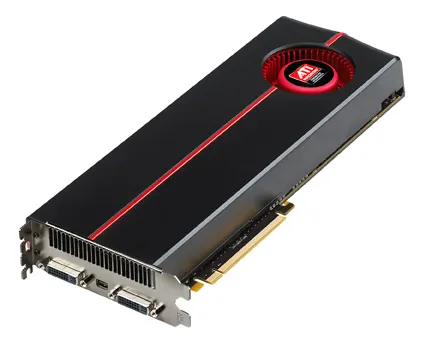
Photo by Advanced Micro Devices, Inc. (AMD) / Wikimedia Commons / Attribution
VRAM, short for video memory, is dedicated, high-speed memory built directly onto a graphics card. It’s separate from your system’s regular RAM, and it stores the data a GPU needs immediate access to while rendering: textures, frame buffers, geometry data, and more. Unlike core GPU performance, which shows up as a smooth degradation when a card is under strain, running out of VRAM tends to cause sharp, noticeable problems — texture pop-in, stuttering, or a sudden frame rate cliff — rather than a gentle slowdown.
What actually consumes VRAM
A few factors drive how much VRAM a game needs at any given moment:
- Resolution. Higher resolutions require larger frame buffers and generally larger textures to look correct, so VRAM demand rises with resolution.
- Texture quality settings. This is usually the single biggest lever a player controls directly — texture quality has an outsized effect on VRAM usage compared to most other graphics settings.
- Ray tracing and other advanced rendering features. These often require additional data structures held in VRAM alongside standard rendering data.
- Background use. Recording or streaming software, overlays, and multiple monitors all consume some VRAM on top of what the game itself needs.
Why “enough” VRAM matters more than “more” VRAM
A GPU with excellent core rendering performance but insufficient VRAM for your settings will bottleneck on VRAM before it bottlenecks on raw processing power — and the result looks different from a normal performance limit. Instead of a lower but stable frame rate, you tend to get stutter, inconsistent frame times, or textures that fail to load at full quality, even if the average frame rate reading looks acceptable. This is why VRAM capacity deserves its own consideration when choosing a card, separate from looking at overall performance tier alone.
That said, more VRAM than you’ll ever use doesn’t make a game run faster — VRAM capacity only matters up to the point where it stops being the limiting factor. Beyond that, the GPU’s core processing power is what determines performance. Buying a card with far more VRAM than your resolution and settings will ever require doesn’t buy you additional speed.
A general way to think about it, by use case
Rather than fixating on a specific number, think in terms of use case:
- Lower resolutions and settings, or older/less demanding titles put comparatively light demands on VRAM, and most current cards handle this comfortably.
- Higher resolutions with high texture quality push VRAM usage up substantially, and this is where budget and lower-tier cards with limited VRAM can start to show the stutter and pop-in symptoms described above, even if their core performance would otherwise be adequate.
- Content creation, heavy multitasking, or multi-monitor setups alongside gaming add extra VRAM overhead on top of gaming demands and are worth factoring in if that describes your usage.
How to check if VRAM is actually your bottleneck
Most systems let you monitor VRAM usage in real time through built-in overlays or third-party monitoring tools. If VRAM usage is pinned near the card’s maximum during play and you’re seeing stutter or texture issues, that’s a strong signal the card’s VRAM capacity — not its core performance — is the limiting factor, and the fix is usually to lower texture quality or resolution rather than other graphics settings. Understanding this distinction can save you from assuming a card needs replacing when a settings adjustment would solve the problem just as effectively.
Our picks: Graphics cards
Shop on Amazon
Affiliate links.As an Amazon Associate I earn from qualifying purchases. Links below go to Amazon; prices and availability change, so check Amazon for current pricing.Affiliate disclosure
NVIDIA GeForce RTX 5070 Ti
16GB card that handles high-refresh 1440p and entry 4K.
Check price on AmazonNVIDIA GeForce RTX 5060 Ti 16GB
Budget-friendly 1080p/1440p pick; get the 16GB version.
Check price on Amazon
Illustrative photos: Photo by Timothy Borkowski / Wikimedia Commons / CC BY-SA 3.0; Photo by Advanced Micro Devices, Inc. (AMD) / Wikimedia Commons / Attribution