Ergonomics 101: Setting Up Your Gaming Station to Avoid Pain
A beginner-friendly guide to positioning your chair, desk, monitor, and peripherals to reduce strain during long gaming sessions.
Main page for gaming setups: Setup Inspiration →
A beginner-friendly guide to positioning your chair, desk, monitor, and peripherals to reduce strain during long gaming sessions.
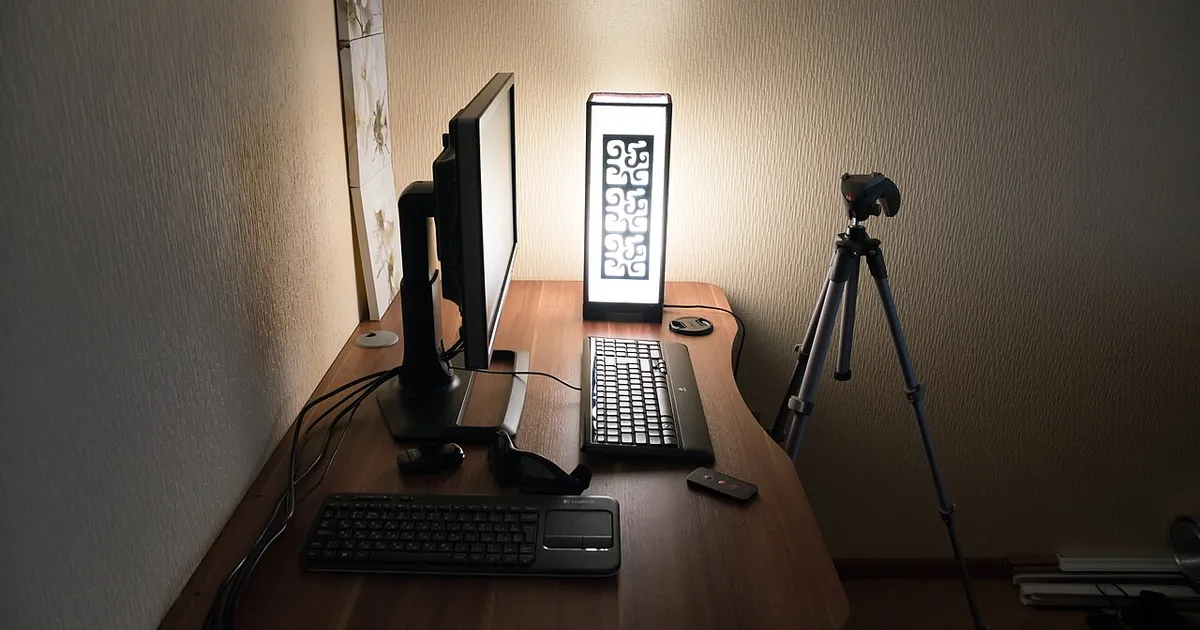
Photo by Vyacheslav Argenberg / Wikimedia Commons / CC BY 4.0
Ergonomics gets treated as an afterthought in most gaming setups, usually addressed only after wrist or back pain shows up. The good news is that most ergonomic problems come from a small number of fixable positioning issues, not expensive missing equipment. Here’s a practical walkthrough of how to set up your existing station to reduce strain, starting from the ground up.
Feet and Seat Height First
Ergonomics starts at the floor. Your feet should sit flat, either on the ground or on a footrest, with your knees at roughly a 90-degree angle. If your chair height is set so your feet dangle or you’re pushing up on your toes, everything above it compensates incorrectly — your hips tilt, your lower back rounds, and your shoulders creep up toward your ears without you noticing. Adjust seat height before anything else, and only then adjust desk height or add a footrest if your feet still can’t sit flat.
Monitor Height and Distance
A monitor positioned too low forces your neck into a forward, downward tilt for hours at a time, which is one of the most common sources of neck and upper back tension in gaming setups. As a general guideline, the top of your monitor should sit roughly at or just below eye level when you’re sitting upright, and the screen should be far enough away that you can read it comfortably without leaning forward. If your monitor sits directly on the desk and this isn’t achievable, a stand or monitor arm that raises it to the right height is one of the highest-impact ergonomic changes you can make.
Elbow and Wrist Position at the Keyboard and Mouse
Wrist strain usually comes from one of two problems: reaching too far forward for the keyboard and mouse, or resting wrists at an awkward upward angle while typing or clicking. Your elbows should sit close to your body at roughly 90 degrees, with your forearms close to parallel to the floor. If your desk is too high for this, a keyboard tray or a lower desk height can help. If you notice your wrists bending upward at the mouse, a low-profile mouse or a wrist rest positioned so your hand stays neutral rather than propped up can reduce the strain.
Build Movement Into Long Sessions
Even a perfectly positioned setup causes fatigue if you stay completely still for hours. Ergonomics isn’t only about static position — it’s also about variation. Standing periodically, adjusting your chair’s recline for short breaks, and simply changing posture every so often reduces the cumulative strain that comes from holding any single position, no matter how well-optimized, for too long. If your desk or chair supports height or recline adjustment, actually using that range throughout a session matters more than finding one “perfect” fixed position.
A Quick Self-Check
- Feet flat, knees near 90 degrees.
- Top of monitor at or near eye level, an arm’s length or more away.
- Elbows close to your body, forearms roughly parallel to the floor.
- Wrists neutral, not angled upward at the keyboard or mouse.
- A reminder — even a simple timer — to shift position or stand briefly during long sessions.
None of these adjustments require new furniture. Most gaming stations already have the range of adjustment needed to fix these issues — it just takes deliberately checking and correcting each one rather than assuming the default position is fine.
Our picks: Gaming desks & Gaming chairs
Shop on Amazon
Affiliate links.As an Amazon Associate I earn from qualifying purchases. Links below go to Amazon; prices and availability change, so check Amazon for current pricing.Affiliate disclosure

Illustrative photos: Photo by Ssamm T / Wikimedia Commons / CC BY-SA 4.0; Photo by Marchuk17 / Wikimedia Commons / CC BY-SA 4.0; Photo by Luke Chesser / Wikimedia Commons / CC0; Photo by Ndurliat / Wikimedia Commons / CC BY-SA 4.0