Gaming Mouse Sensors and DPI Explained (Without the Marketing Spin)
What DPI, polling rate, and sensor type actually mean for gaming mice, and how to set them up instead of just chasing the highest number.
What DPI, polling rate, and sensor type actually mean for gaming mice, and how to set them up instead of just chasing the highest number.
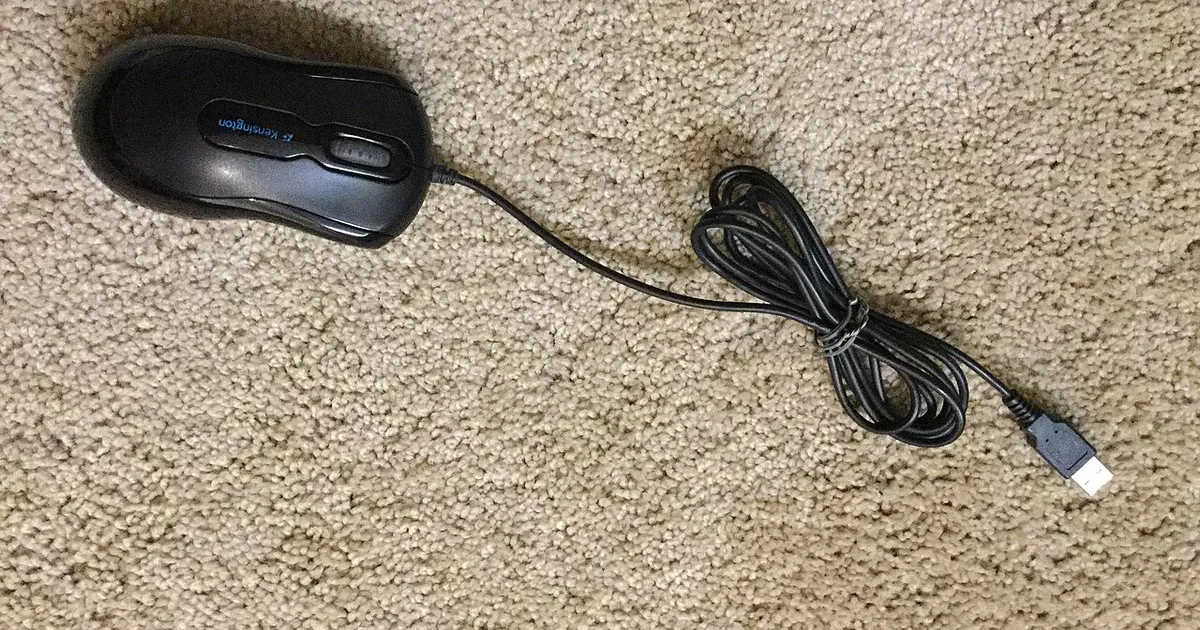
Photo by FASTILY / Wikimedia Commons / CC BY-SA 4.0
DPI is probably the most misunderstood spec in gaming mouse marketing. Higher isn’t automatically better, and chasing a bigger number on the box can actually hurt your aim. Here’s what the sensor specs really control and how to set them up sensibly.
What DPI actually measures
DPI (dots per inch, sometimes called CPI, counts per inch) measures how many “counts” the sensor reports per inch of physical mouse movement. A higher DPI means the cursor moves further on screen for the same physical hand movement; a lower DPI means you need to move the mouse further for the same on-screen distance.
That’s it. DPI is not a measure of accuracy, quality, or “how good” the sensor is — it’s a sensitivity multiplier. A mouse advertised at a huge maximum DPI isn’t inherently more precise than one with a modest max DPI; most players never use anywhere near a sensor’s maximum setting.
Why higher DPI isn’t automatically better
At very high DPI settings, small, involuntary hand movements get amplified into large cursor jumps, which makes fine aiming harder, not easier. Competitive players in precision-heavy genres often run comparatively low, consistent DPI settings paired with slower, more deliberate hand movements across a larger mousepad area — the opposite of what “bigger number = better” marketing implies.
The right DPI is the one that lets you comfortably reach every part of your screen or in-game reticle range using a mouse movement distance that feels natural for your desk space and grip style. There’s no universal “correct” number.
Polling rate: how often the mouse reports position
Polling rate, measured in Hz, is how frequently the mouse reports its position to your computer. A higher polling rate means more frequent updates, which can reduce perceived input lag and make cursor movement feel smoother, especially at high mouse speeds. Very high polling rates increase CPU usage slightly and, on older systems, can introduce inconsistency if the system can’t keep up — so more isn’t always practically better either. Pick a polling rate your system handles smoothly rather than maxing it out by default.
Sensor types: optical vs laser
- Optical sensors use an LED light source and are the standard choice for most gaming mice today. They perform reliably on most matte surfaces and are generally less prone to unwanted acceleration artifacts.
- Laser sensors use a laser diode and can track on a wider variety of surfaces, including some glossy ones, but historically have been more prone to negative acceleration and tracking inconsistencies on certain mousepad textures.
For most gaming use on a dedicated mousepad, optical sensors are the more predictable, widely recommended option.
Lift-off distance and mouse feet
Lift-off distance (LOD) is how high you can lift the mouse off the surface before the sensor stops tracking. This matters most for players who “reset” their mouse position mid-swing by lifting it. A lower, well-calibrated LOD avoids the cursor jumping or continuing to track while the mouse is in the air. Many gaming mice let you adjust LOD in software — worth checking if you notice odd cursor behavior during lifts.
How to actually set yours up
- Start with a moderate DPI (many players land somewhere in the low-to-mid range relative to their sensor’s maximum) and a full-screen sensitivity that lets you do a full 180-degree turn with a comfortable arm or wrist movement.
- Set polling rate to a level your system runs smoothly without stutter.
- Test lift-off distance if your mouse allows adjustment, especially if you lift and reposition often.
- Adjust gradually over a few sessions rather than constantly changing settings — muscle memory needs consistency to build.
The takeaway: sensor specs are tools to configure around your own hand movement and desk space, not a leaderboard to top. A well-tuned “average” sensor beats a maxed-out DPI setting you can’t actually control.
Our picks: Mice
Shop on Amazon
Affiliate links.As an Amazon Associate I earn from qualifying purchases. Links below go to Amazon; prices and availability change, so check Amazon for current pricing.Affiliate disclosure
Illustrative photos: Photo by Jacek Halicki / Wikimedia Commons / CC BY-SA 4.0; Photo by FASTILY / Wikimedia Commons / CC BY-SA 4.0