A General Guide to Optimizing Windows for Gaming Performance
A walkthrough of safe, general system-level adjustments that can help squeeze out steadier performance on a Windows gaming PC.
Main page for optimization: Optimization Guides →
A walkthrough of safe, general system-level adjustments that can help squeeze out steadier performance on a Windows gaming PC.
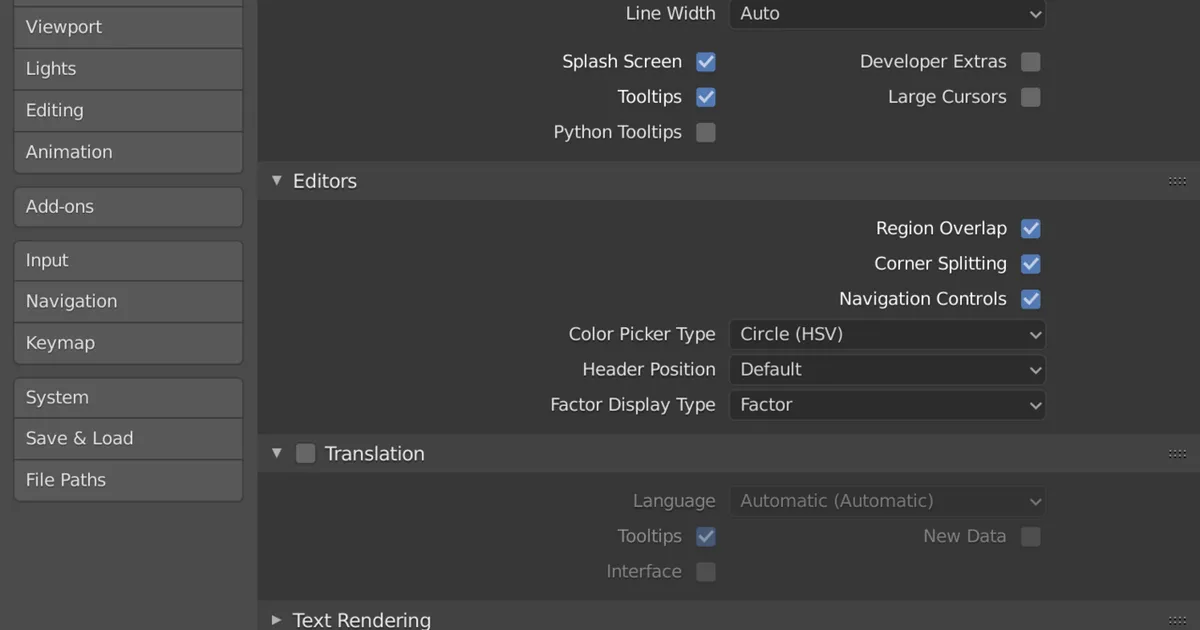
Photo by domdomegg / Wikimedia Commons / CC BY 4.0
Optimizing Windows for gaming isn’t about chasing every obscure tweak floating around online — many of those have marginal or even negative effects. It’s more useful to focus on a handful of well-understood adjustments that reliably help without risking system stability.
Keep the Basics Current First
Before touching any settings, confirm your graphics drivers, Windows updates, and motherboard chipset drivers are reasonably current. Outdated drivers are one of the most common causes of stutter, crashes, or underperformance, and they’re also the easiest thing to fix. This step alone resolves more performance complaints than any advanced tweak.
Set Windows to Favor Performance Where It Matters
Windows includes a power plan setting that affects how aggressively your system scales CPU performance. For a desktop gaming PC, a High Performance or Balanced-with-performance-bias plan generally makes more sense than a power-saving plan designed for laptops trying to extend battery life. On laptops, check that the power plan switches appropriately when plugged in versus on battery.
Manage Background Applications
Every background process competes for CPU cycles, memory, and sometimes GPU resources. A few things worth reviewing:
- Startup programs — check which applications launch automatically and disable ones you don’t need running constantly, especially anything with a persistent background presence like update checkers or overlay tools you rarely use.
- Overlay and capture software — useful when you need it, but running several overlay tools simultaneously (chat apps, capture software, performance monitors) can add measurable overhead.
- Browser tabs and heavy background apps — closing resource-heavy applications before a gaming session frees up memory and CPU headroom, particularly on systems with more limited RAM.
Storage and Game Installation Location
Where a game is installed can affect load times noticeably. Installing on a faster drive, and keeping that drive from filling up completely, helps maintain consistent performance — many drives slow down as they approach capacity. Periodically clearing out unused games or files helps keep this from becoming an issue.
Graphics Settings at the Driver Level
Beyond in-game settings, your graphics driver control panel typically includes system-wide preferences, like whether to prioritize performance or quality by default, and power management settings for the GPU itself. Reviewing these once after a fresh driver install (rather than relying purely on defaults) can help ensure the GPU isn’t being held back unnecessarily.
What to Avoid
Not every “optimization” floating around forums or videos is worth doing. Be cautious of:
- Registry tweaks with vague or unverifiable claims about performance gains.
- Disabling core Windows services without understanding what they do, which can cause instability elsewhere.
- Overclocking without understanding proper safety margins, cooling requirements, and stability testing.
A Sensible Routine
Rather than a one-time deep tweak session, treat optimization as periodic maintenance: keep drivers current, review startup programs occasionally, monitor drive space, and revisit power settings if you’ve changed hardware. This steady, low-risk approach tends to produce more consistent results than chasing every aggressive tweak claim you come across.
Our picks: SSDs & Memory
Shop on Amazon
Affiliate links.As an Amazon Associate I earn from qualifying purchases. Links below go to Amazon; prices and availability change, so check Amazon for current pricing.Affiliate disclosure
G.Skill Trident Z5 Neo RGB DDR5-6000 32GB
EXPO-tuned kit made for Ryzen, with RGB.
Check price on AmazonKingston FURY Beast DDR5 32GB 6000MHz
Low-profile kit that clears big air coolers.
Check price on Amazon
Illustrative photos: Photo by Dmitry Nosachev / Wikimedia Commons / CC BY-SA 4.0; Photo via Wikimedia Commons / CC BY-SA 3.0; Photo by Victorrocha / Wikimedia Commons / CC BY 3.0