How to Optimize In-Game Settings for Better FPS Without Sacrificing Visuals
A practical approach to tuning graphics settings for better frame rates while keeping the visual quality that actually matters to you.
Main page for optimization: Optimization Guides →
A practical approach to tuning graphics settings for better frame rates while keeping the visual quality that actually matters to you.
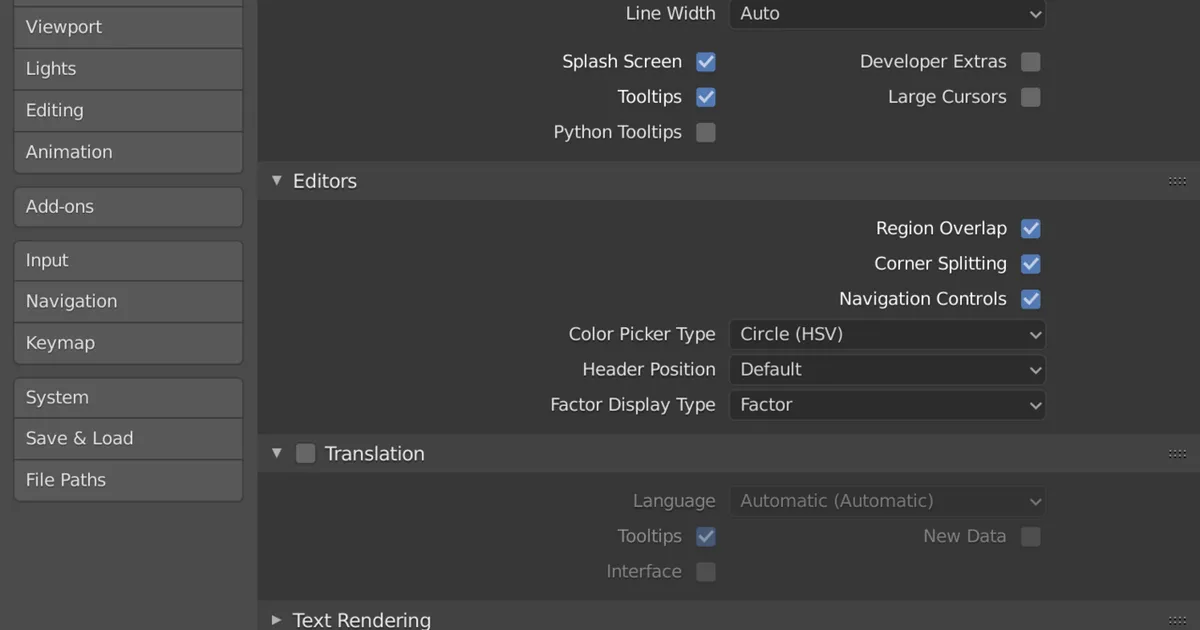
Photo by domdomegg / Wikimedia Commons / CC BY 4.0
Chasing higher frame rates doesn’t have to mean turning every graphics setting to its lowest value. Some settings have a much larger performance cost relative to their visual impact than others, and knowing which is which lets you keep the visuals you actually notice while trimming the ones you don’t.
Understand the Settings With the Biggest Performance Cost
A handful of graphics settings tend to have an outsized effect on frame rate relative to others:
- Shadow quality and resolution — shadows are computationally expensive, and dropping from the highest setting to a middle setting often has a fairly small visual difference during actual gameplay, especially in motion.
- Anti-aliasing — smooths jagged edges, but higher settings can be costly; many modern anti-aliasing methods offer a decent middle ground between visual smoothness and performance cost.
- Draw distance and level-of-detail settings — how far detailed objects render before switching to simpler versions. Extreme draw distances can be costly for a benefit that’s easy to miss during fast-paced gameplay.
- Post-processing effects (motion blur, depth of field, bloom) — often stylistic rather than critical to clarity, and some players prefer them off anyway for competitive clarity, which conveniently also helps performance.
Settings Usually Worth Keeping Higher
Not every setting is worth sacrificing. A few tend to have a more noticeable visual impact relative to their performance cost:
- Texture quality, as long as you have sufficient video memory, since blurry or low-resolution textures are often more visually obvious than reduced shadow detail.
- Resolution itself, since dropping native resolution has a broad effect on overall visual clarity rather than a subtle one.
A Practical Tuning Approach
- Start from a “high” or “recommended” preset rather than tuning every setting individually from scratch.
- Identify your target frame rate based on your monitor’s refresh rate and your genre’s needs — competitive shooters often benefit from prioritizing consistency and higher frame rates, while slower-paced or visually driven games may tolerate a lower target in exchange for more visual fidelity.
- Adjust the highest-cost, lowest-visual-impact settings first (shadows, certain post-processing effects) before touching resolution or texture quality.
- Test in an actual gameplay scenario, not just a menu screen, since some settings only show their performance impact under real load.
- Make one change at a time where practical, so you can tell which adjustment actually moved the needle.
Don’t Neglect In-Game Sync and Frame Rate Options
Beyond individual visual settings, check for frame rate limiting and sync options within the game itself. An uncapped frame rate isn’t always better — in some cases, a sensible frame rate cap paired with the right sync setting produces a smoother, more consistent feel than raw uncapped numbers, particularly if your frame rate fluctuates significantly during gameplay.
Revisit After Hardware or Driver Changes
Settings that were well-tuned for your system can shift after a driver update or hardware change. It’s worth periodically re-checking your settings rather than assuming a configuration from months or years ago is still the ideal balance for your current setup.
The Core Idea
Optimizing for frame rate isn’t about minimizing every setting — it’s about being selective. Understanding which settings cost the most for the least visual benefit lets you keep the details that actually matter to your experience while freeing up the performance headroom you’re after.
Our picks: SSDs & Memory
Shop on Amazon
Affiliate links.As an Amazon Associate I earn from qualifying purchases. Links below go to Amazon; prices and availability change, so check Amazon for current pricing.Affiliate disclosure
G.Skill Trident Z5 Neo RGB DDR5-6000 32GB
EXPO-tuned kit made for Ryzen, with RGB.
Check price on AmazonKingston FURY Beast DDR5 32GB 6000MHz
Low-profile kit that clears big air coolers.
Check price on Amazon
Illustrative photos: Photo by Dmitry Nosachev / Wikimedia Commons / CC BY-SA 4.0; Photo via Wikimedia Commons / CC BY-SA 3.0; Photo by Victorrocha / Wikimedia Commons / CC BY 3.0