How to Choose the Right Resolution and Display Settings for PC Gaming
A practical breakdown of how resolution, refresh rate, and scaling settings interact so you can pick the combination that actually suits your GPU and monitor.
Main page for gaming pcs: Gaming PCs →
A practical breakdown of how resolution, refresh rate, and scaling settings interact so you can pick the combination that actually suits your GPU and monitor.
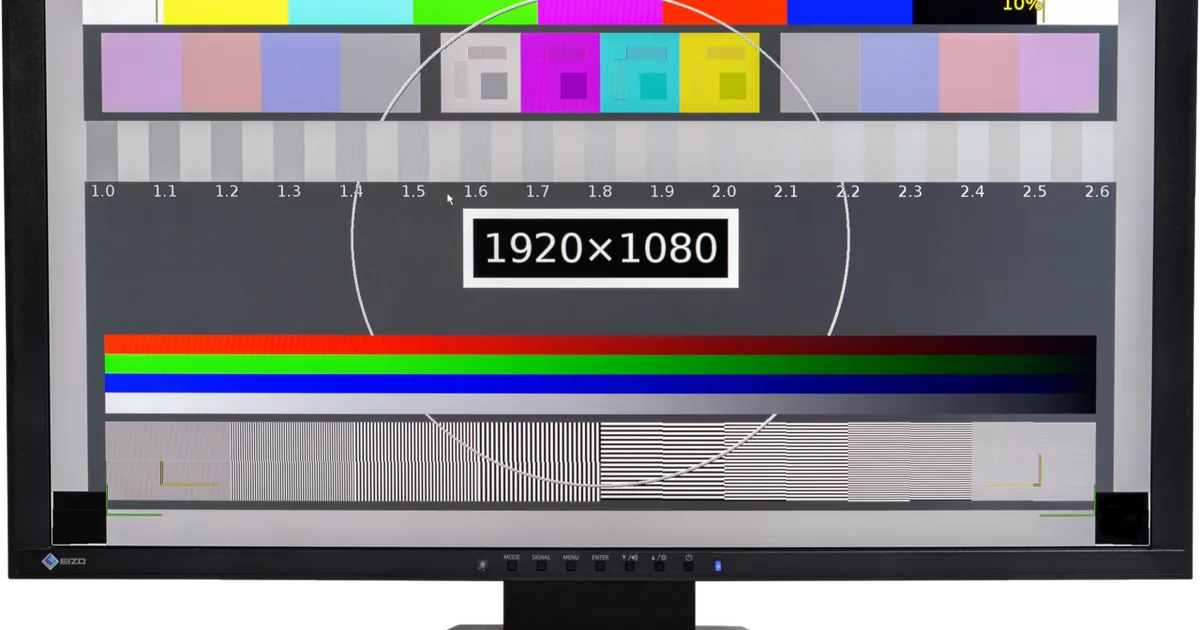
Photo by Lucasbosch / Wikimedia Commons / CC BY-SA 4.0
Resolution is one of the first settings new PC gamers change, and one of the least understood. Bumping to a higher resolution makes everything sharper, but it also asks significantly more of your graphics card, and the “best” choice depends heavily on what monitor and GPU you actually have — not on what looks impressive in a spec sheet. Here’s how to think through the decision properly instead of just picking the highest number available.
Match Resolution to Your GPU, Not Your Monitor’s Maximum
Every monitor lists a native resolution, but that number is a ceiling, not a target. Running games below native resolution and letting the display upscale is a completely valid choice if your graphics card struggles to keep frame rates stable at full resolution. The image will be slightly softer, but a stable, smooth frame rate almost always feels better during actual gameplay than a sharper image that stutters. If you’re unsure where your hardware sits, start a new game at a mid-range preset, watch how it performs, and adjust resolution or detail settings from there rather than assuming maximum settings are the goal.
Understand Refresh Rate Before You Chase Resolution
Refresh rate and resolution compete for the same GPU budget. A higher refresh rate means more frames need to be rendered every second, which can matter more for how a game feels than resolution does, especially in fast-paced, competitive titles. If you own a high-refresh-rate monitor, it’s often worth dropping resolution or detail settings to keep frame rate closer to that refresh rate, rather than running at maximum resolution and topping out well below it. For slower-paced or visually driven single-player games, the opposite trade-off — prioritizing resolution and detail over very high frame rates — is often the more satisfying choice.
Get Scaling and Aspect Ratio Right
Nothing looks worse than a game rendered at the wrong aspect ratio for your screen, resulting in stretched or letterboxed visuals. Before adjusting anything else, confirm the in-game resolution list matches your monitor’s native aspect ratio (16:9, 21:9 ultrawide, and so on). Most modern games auto-detect this correctly, but it’s worth a quick check after driver updates or when switching monitors, since a mismatched setting can silently persist for weeks without you noticing anything beyond “the game looks a little off.”
Use Built-In Upscaling Features Wisely
Many current games include upscaling technologies that render internally at a lower resolution and reconstruct a sharper image using the GPU. These features can meaningfully boost frame rates with a smaller visual quality cost than simply lowering render resolution manually, and they’re worth testing in any game that offers them. Results vary by title and by how the feature is implemented, so treat the “quality,” “balanced,” and “performance” modes as settings to experiment with rather than assuming one tier is always correct — try each for a few minutes in a demanding area of the game and judge the trade-off for yourself.
A Simple Process for Dialing In Your Settings
- Set resolution to your monitor’s native resolution as a starting point.
- Enable V-Sync or a frame rate cap appropriate to your monitor’s refresh rate to avoid tearing.
- If performance feels rough, test an upscaling mode before lowering native resolution.
- If you still need more headroom, drop resolution in modest steps rather than jumping straight to the lowest option.
- Revisit these settings after major driver or game updates, since defaults can reset.
Resolution and display settings are not a one-time decision — they’re something worth revisiting as games, drivers, and your own hardware change. Treating it as an ongoing tuning process, rather than a setting you configure once and forget, will get you a noticeably better experience over time.
Our picks: Graphics cards & Processors
Shop on Amazon
Affiliate links.As an Amazon Associate I earn from qualifying purchases. Links below go to Amazon; prices and availability change, so check Amazon for current pricing.Affiliate disclosure
NVIDIA GeForce RTX 5070 Ti
16GB card that handles high-refresh 1440p and entry 4K.
Check price on Amazon
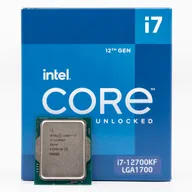
Illustrative photos: Photo by Timothy Borkowski / Wikimedia Commons / CC BY-SA 3.0; Photo by Myself User:ZyMOS / Wikimedia Commons / CC BY-SA 4.0; Photo by Advanced Micro Devices, Inc. (AMD) / Wikimedia Commons / Attribution; Photo by Jacek Halicki / Wikimedia Commons / CC BY-SA 4.0; Photo by Ondřej Martin Mach / Wikimedia Commons / CC BY-SA 3.0