Windows Settings Every PC Gamer Should Check for Better Performance
A walkthrough of operating-system-level settings that affect gaming performance, from power plans to background processes, beyond in-game graphics options.
A walkthrough of operating-system-level settings that affect gaming performance, from power plans to background processes, beyond in-game graphics options.
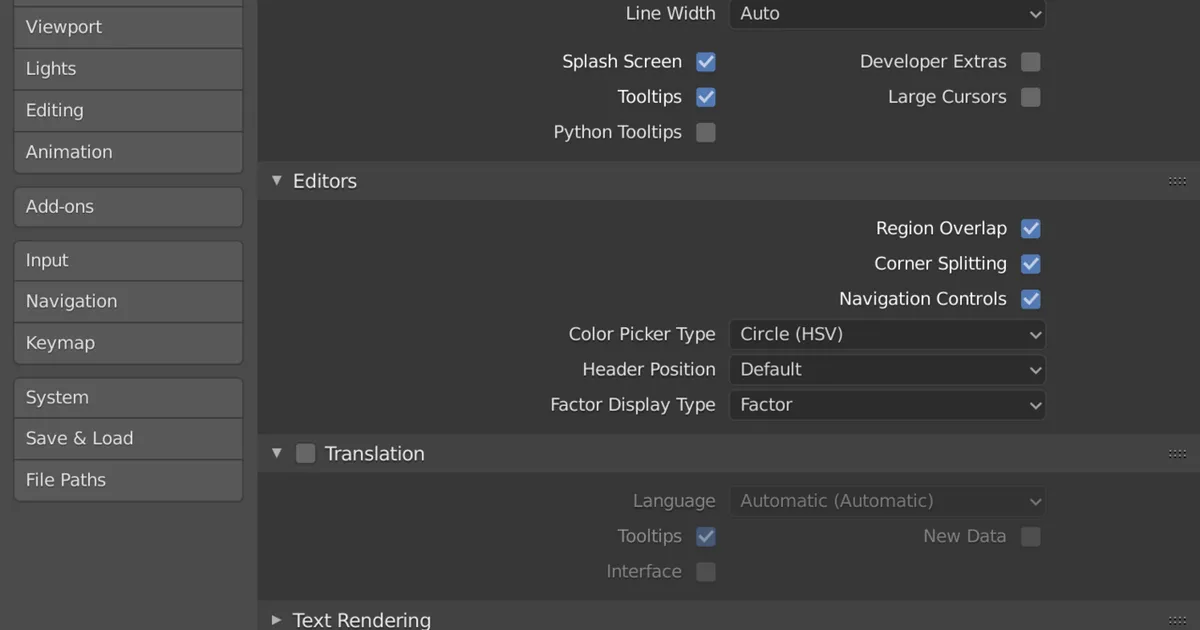
Photo by domdomegg / Wikimedia Commons / CC BY 4.0
Most performance advice focuses on in-game graphics settings, but the operating system underneath has its own set of switches that can quietly cap how well your hardware performs, regardless of what you configure inside a game. These settings are easy to overlook because they’re outside the game entirely, but checking them takes only a few minutes and can make a real difference, especially on a system that hasn’t been reviewed in a while.
Check Your Power Plan
Windows power plans control how aggressively the system throttles CPU and other components to save energy, and a plan set to prioritize battery life or balanced power over performance can hold back a gaming session without any obvious symptom beyond “it feels a little sluggish.” If your machine is plugged in and dedicated to gaming, using a high-performance power plan removes an unnecessary layer of throttling. On laptops, be aware this trades battery life for performance, so it’s worth switching plans deliberately rather than leaving one setting permanently active.
Use Game Mode and Check Background Activity
Windows includes a built-in Game Mode designed to prioritize system resources toward the active game and reduce background interruptions. It’s worth confirming it’s enabled, then separately checking what’s actually running in the background — browser windows with many tabs, chat applications, cloud sync tools, and update services can all quietly consume CPU, memory, or network bandwidth during a session. None of these need to be permanently disabled, but closing unnecessary background applications before a demanding session is a simple habit that frees up resources Game Mode alone won’t reclaim.
Keep Graphics Drivers Current, Deliberately
Graphics driver updates frequently include performance improvements and game-specific fixes, and running on an outdated driver can leave performance on the table or introduce bugs that have already been fixed. That said, it’s reasonable to be slightly cautious with brand-new driver releases before a major event or tournament, since occasional driver updates introduce their own new issues. A reasonable middle ground is checking for updates regularly, but not necessarily updating the moment a new driver drops if you’re in the middle of something performance-critical.
Review Startup Programs
Every application configured to launch automatically at startup consumes some memory and system resources persistently, even when you’re not actively using it. Reviewing your startup program list periodically and disabling anything you don’t need running constantly — rather than closing it manually every session — reduces the baseline load on your system before you’ve even opened a game. This is a “set it once” fix rather than something you need to repeat regularly.
Don’t Overlook Storage and Memory Headroom
A nearly full storage drive can slow down general system responsiveness, including load times and background caching that games rely on. Similarly, running many memory-heavy applications alongside a game can force the system into more aggressive memory management than necessary. Periodically checking available storage space and closing unused applications before gaming sessions are simple maintenance habits that pay off more than most people expect.
A Quick Pre-Session Checklist
- Power plan set to high performance while plugged in.
- Game Mode enabled and unnecessary background apps closed.
- Graphics drivers reasonably current.
- Startup program list reviewed for unnecessary entries.
- Adequate free storage space and available memory.
None of these changes require deep technical knowledge, and most only need to be set up once. Together, they clear away performance overhead that exists entirely outside the game itself — overhead that no amount of in-game settings tuning can fix on its own.
Our picks: SSDs & Memory
Shop on Amazon
Affiliate links.As an Amazon Associate I earn from qualifying purchases. Links below go to Amazon; prices and availability change, so check Amazon for current pricing.Affiliate disclosure
G.Skill Trident Z5 Neo RGB DDR5-6000 32GB
EXPO-tuned kit made for Ryzen, with RGB.
Check price on AmazonKingston FURY Beast DDR5 32GB 6000MHz
Low-profile kit that clears big air coolers.
Check price on Amazon
Illustrative photos: Photo by Dmitry Nosachev / Wikimedia Commons / CC BY-SA 4.0; Photo via Wikimedia Commons / CC BY-SA 3.0; Photo by Victorrocha / Wikimedia Commons / CC BY 3.0