Planning a Multi-Monitor Setup: Space, Power, and Cable Considerations
What to think through before adding a second or third monitor to your setup, from desk space and viewing angles to power and GPU output limits.
Main page for gaming setups: Setup Inspiration →
What to think through before adding a second or third monitor to your setup, from desk space and viewing angles to power and GPU output limits.
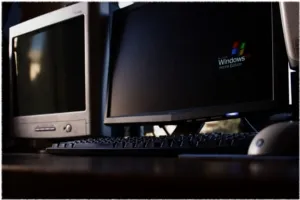
Photo by Lennybird / Wikimedia Commons / CC BY-SA 3.0
Adding a second or third monitor sounds simple, but a poorly planned multi-monitor setup often ends up cramped, mismatched, or physically uncomfortable to use. A little planning before buying anything makes the difference between a setup that feels natural and one that feels like a compromise.
Start With Desk Space, Not Monitor Count
The number of monitors you can comfortably use is limited by desk depth and width more than by budget. Before deciding on two versus three monitors, measure your desk and consider how much of it needs to stay clear for keyboard, mouse, and other items. A cramped multi-monitor setup where screens are too close to comfortably view often ends up worse than a single well-placed display.
Decide on Primary vs. Secondary Roles
Multi-monitor setups work best when each screen has a clear purpose:
- A primary display directly in front of you, at the correct height and distance for extended focus.
- A secondary display angled slightly for reference material, chat, streams, or background tasks — not necessarily meant to be stared at directly for long stretches.
- A third display, if used, often works best angled sharply to the side for occasional glances rather than sustained viewing.
Trying to treat every monitor as equally primary usually results in neck strain from constantly turning to face whichever one currently has focus.
Matching Monitors (Or Deciding Not To)
It’s not strictly necessary for all monitors to match in size, resolution, or refresh rate, but mismatches have real effects worth planning for. Different resolutions mean UI elements and text will appear different sizes across screens. Different refresh rates can create a jarring feeling when moving windows between them. If you’re adding a monitor to an existing one, decide consciously whether matching specs matters enough to you to justify replacing the older display, or whether you’re comfortable using it in a clearly secondary role instead.
Check GPU Output Support Before Buying
Before committing to a multi-monitor plan, confirm how many displays your graphics card can actually drive, and whether the ports match what your monitors need (which can matter more than raw port count, since adapters and cable types vary). It’s a simple check that avoids a frustrating surprise after monitors have already arrived.
Plan Physical Support
Multiple monitors typically need either substantial desk-stand footprint or a monitor arm / mounting solution. Consider:
- Whether your desk surface can support the combined weight of monitor stands, or whether a clamp-mounted arm setup would work better and free up desk space.
- Whether your desk has the depth for stands without pushing monitors too close to you.
- How much vertical adjustment you’ll need to align monitor tops evenly, since mismatched screen heights strain the neck over time.
Cable and Power Planning
More monitors means more video cables and, often, more power connections. Plan your cable routing before finalizing monitor placement — running cables along the back of a desk or through a management tray is much easier to set up before monitors are mounted than after.
Bringing It Together
A multi-monitor setup rewards a bit of upfront planning: know your desk space, decide each screen’s role, confirm your graphics card can support the configuration, and plan mounting and cabling before you buy. Getting these decisions right from the start avoids the common outcome of a multi-monitor setup that looks impressive but is genuinely uncomfortable to use daily.
Our picks: Gaming desks & Gaming monitors
Shop on Amazon
Affiliate links.As an Amazon Associate I earn from qualifying purchases. Links below go to Amazon; prices and availability change, so check Amazon for current pricing.Affiliate disclosure
ASUS TUF Gaming VG27AQ
Popular 1440p high-refresh monitor that rarely disappoints.
Check price on Amazon



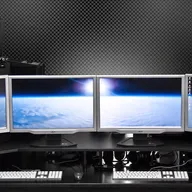
Illustrative photos: Photo by Ssamm T / Wikimedia Commons / CC BY-SA 4.0; Photo by Lennybird / Wikimedia Commons / CC BY-SA 3.0; Photo by Luke Chesser / Wikimedia Commons / CC0; Photo by PantheraLeo1359531 / Wikimedia Commons / CC BY 4.0; Photo by Terabass / Wikimedia Commons / CC BY-SA 3.0