Build a PC Rescue USB Drive: What to Put on It and Which Drives to Use
A checklist for a USB drive that installs Windows, flashes a BIOS and gets drivers onto a new build, plus which USB drives suit the job.
A checklist for a USB drive that installs Windows, flashes a BIOS and gets drivers onto a new build, plus which USB drives suit the job.
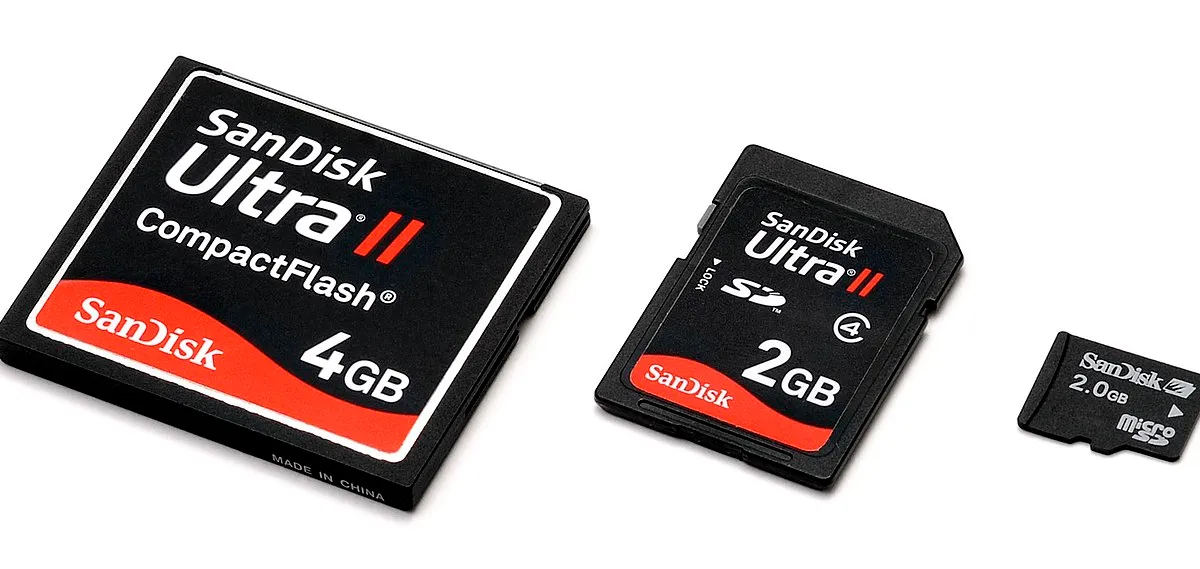
Photo by Evan-Amos / Wikimedia Commons / Public domain
Affiliate links.As an Amazon Associate I earn from qualifying purchases. Links below go to Amazon; prices and availability change, so check Amazon for current pricing.Affiliate disclosure
A prepared USB drive saves a lot of stress when you build a new PC, reinstall Windows or troubleshoot a machine that won’t boot. Here’s a checklist of what to put on it, and what kind of drive to use.
The checklist
- Windows installer: create it with Microsoft’s official Media Creation Tool, which downloads Windows 11 and makes the drive bootable. It needs a drive of at least 8GB.
- Network driver: download the Wi-Fi and Ethernet drivers for your motherboard from the maker’s support page. Without them, a fresh Windows install may not get online.
- Chipset driver: from AMD or Intel, or your motherboard’s support page.
- Your BIOS file: if your board supports BIOS flashback, put the BIOS file on a separate drive, renamed as the manual specifies. Flashback often needs a FAT32-formatted drive.
- GPU driver: the current NVIDIA, AMD or Intel installer.
- A list of your product keys and accounts: store it safely, not on the drive itself if it might be lost.
Which drives to use
- A plain USB 3.x drive such as the SanDisk Ultra Flair USB 3.0 64GB handles the Windows installer.
- A small, cheap second drive like the Samsung FIT Plus 64GB for BIOS flashback. Some boards are picky about large or fast drives, so a basic drive is often more reliable.
- A fast portable SSD such as the Samsung T7 Portable SSD 1TB if you also want backups and portable game storage.
Avoid fake-capacity drives
Unbranded drives that claim huge capacities at very low prices are a well-known scam: they report a large size but lose data once you pass their real capacity. Buy known brands from reputable sellers.
Keep it current
Recreate the Windows installer every few months, and update the drivers before a new build. Old installers mean longer update times after installation.
Bottom line
Two USB drives (one for Windows, one for BIOS flashback) plus your drivers cover almost every build and rescue situation.
Our picks: PC building essentials & Graphics cards
Shop on Amazon
Affiliate links.As an Amazon Associate I earn from qualifying purchases. Links below go to Amazon; prices and availability change, so check Amazon for current pricing.Affiliate disclosure
NVIDIA GeForce RTX 5070 Ti
16GB card that handles high-refresh 1440p and entry 4K.
Check price on Amazon

Illustrative photos: Photo by Bill Abbott / Wikimedia Commons / CC BY-SA 2.0; Photo by Timothy Borkowski / Wikimedia Commons / CC BY-SA 3.0; Photo by 18bit / Wikimedia Commons / CC BY-SA 4.0; Photo by Advanced Micro Devices, Inc. (AMD) / Wikimedia Commons / Attribution