ROG Ally Battery Life and Performance: Practical Tips for Longer Sessions
How to balance performance and battery life on an ASUS ROG Ally, from power modes to background processes worth disabling.
How to balance performance and battery life on an ASUS ROG Ally, from power modes to background processes worth disabling.
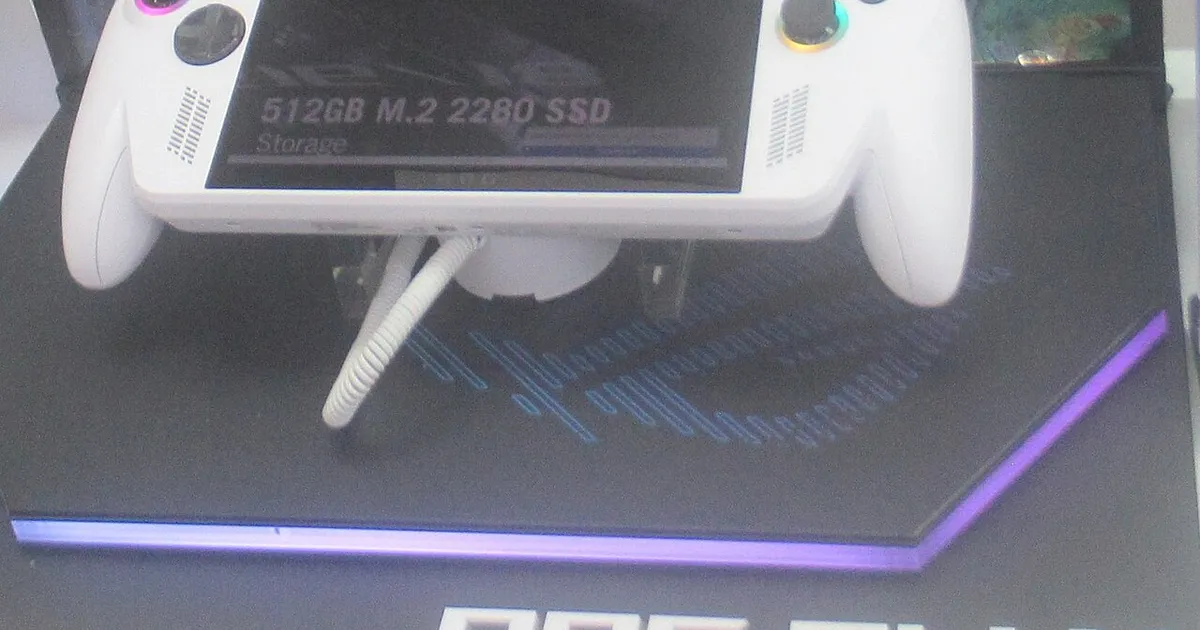
Photo by P1898 / Wikimedia Commons / CC BY 4.0
Battery life is the most common complaint about Windows-based handhelds, and much of it comes down to configuration rather than the hardware itself. A little tuning goes a long way toward getting sessions that actually match how you want to play.
Understanding Power Modes
ROG Ally, like most Windows handhelds, offers multiple performance profiles that trade raw power draw for graphical performance. Running a demanding game at the highest performance mode away from a charger will drain the battery far faster than a lighter or older title run at a more conservative setting. The single biggest lever for battery life is matching the performance mode to what the game actually needs — a visually simple or less demanding game rarely benefits from the highest power mode, so dropping it down saves battery without a noticeable visual cost.
Windows Background Processes That Drain Battery
Because ROG Ally runs full Windows, it inherits the same background activity a laptop deals with — automatic updates, background sync services, and startup apps that aren’t relevant to gaming can all quietly consume battery and CPU cycles during a session. A few worthwhile habits:
- Check for and close unnecessary background apps before starting a longer session.
- Schedule or pause major Windows updates rather than letting them run mid-session.
- Review startup programs periodically, since installers sometimes add background processes without asking.
- Use Windows’ built-in battery or power usage view occasionally to spot anything unexpectedly active.
Display and Graphics Settings Worth Adjusting
The screen itself is one of the larger power draws on any handheld. Lowering brightness to the minimum comfortable level for your environment, reducing refresh rate in games that don’t need a high one, and capping in-game frame rates below the display’s maximum when you don’t need the extra smoothness all meaningfully extend a charge. In-game graphics settings matter too — resolution scaling and shadow quality in particular tend to have an outsized performance cost relative to how noticeable they are on a small handheld screen, so trimming them back is often a “free” battery gain with minimal visual downside.
Charging Habits and Battery Longevity
Beyond session-to-session battery life, how you charge affects the battery’s long-term health. As with most modern lithium batteries, avoiding routinely running all the way down to empty or leaving the device on a charger at 100% for extended periods both help preserve capacity over the device’s lifespan. If your device offers a battery charge limit setting to cap charging below 100% for day-to-day use, it’s worth enabling for a device that spends a lot of time plugged in, and only charging fully before trips where you need the maximum runtime.
Bottom Line
Most battery complaints about Windows handhelds come down to running at more power than a given game actually needs, plus background processes eating into that budget unnoticed. A few minutes spent matching performance mode to the game, trimming background activity, and adjusting display settings routinely doubles as both a battery-life fix and a way to reduce fan noise and heat.
Our picks: ROG Ally
Shop on Amazon
Affiliate links.As an Amazon Associate I earn from qualifying purchases. Links below go to Amazon; prices and availability change, so check Amazon for current pricing.Affiliate disclosure


Illustrative photos: Photo by P1898 / Wikimedia Commons / CC BY 4.0; Photo by Evan-Amos / Wikimedia Commons / Public domain